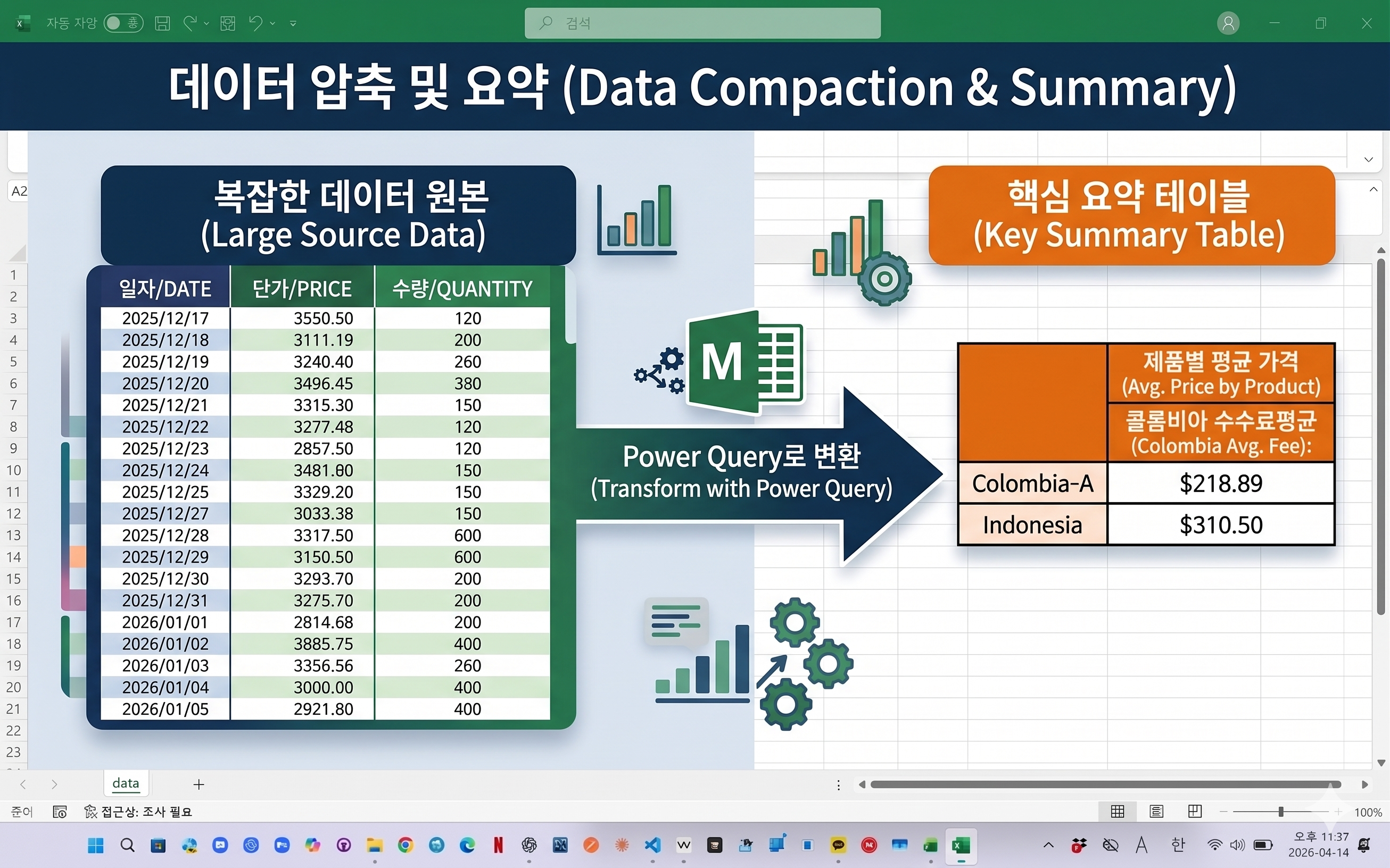
In Excel, calculating averages based on specific conditions is a common task.
This example shows how to filter data by category and value,
then automatically calculate the average using Power Query.
엑셀 데이터를 처리하다 보면
특정 조건을 만족하는 데이터만 골라 평균을 계산해야 하는 경우가 많습니다.
이번 예제에서는
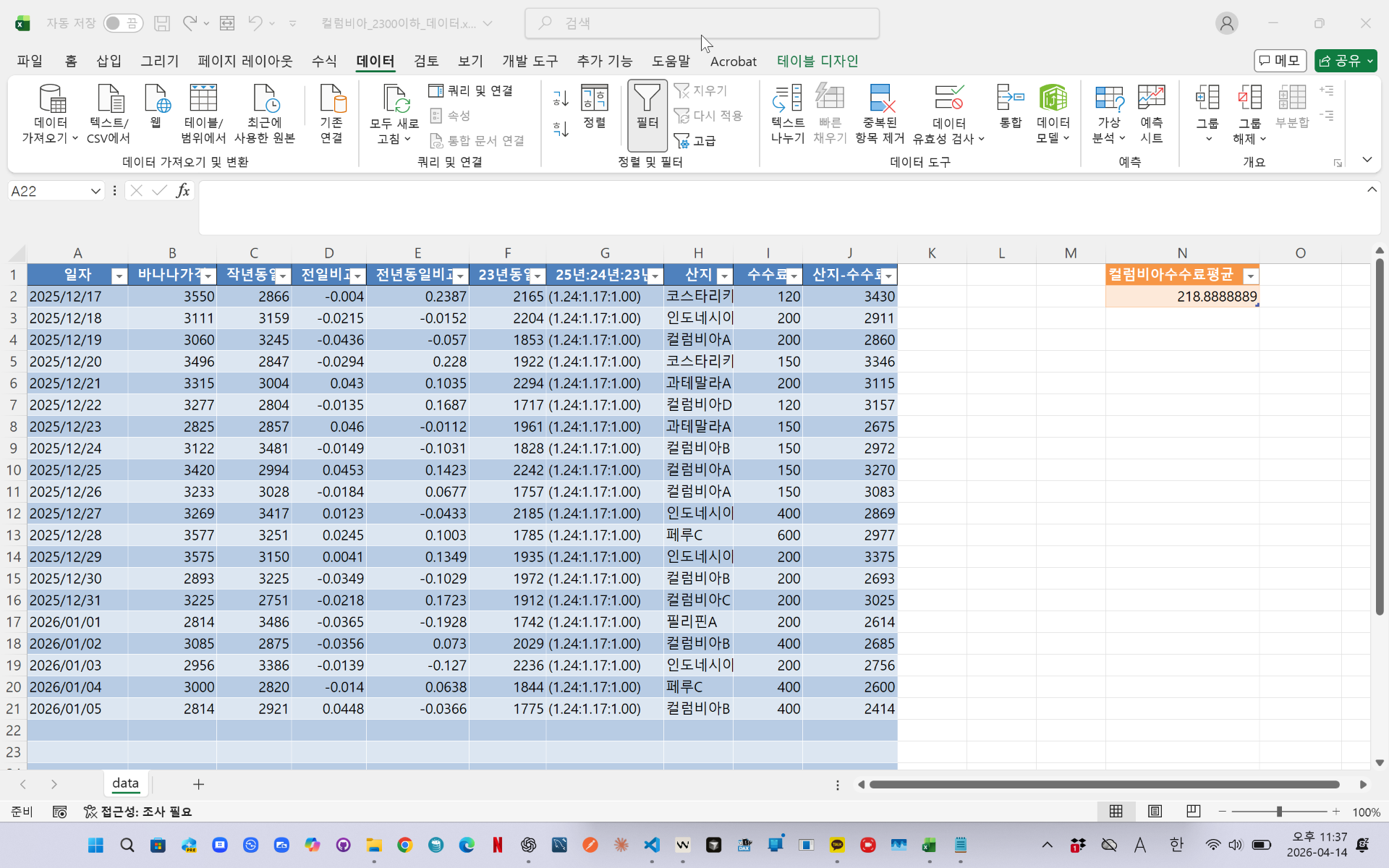
산지와 특정 값 조건을 기준으로 데이터를 필터링한 뒤
평균값을 자동으로 계산하는 방법을 소개합니다.
(이미지 삽입)
Power Query를 활용하면
복잡한 함수 없이도 클릭 몇 번으로 조건 필터와 평균 계산을 동시에 처리할 수 있으며
데이터가 변경되더라도 새로고침만으로 자동 반영됩니다.
Filter data based on text and numeric conditions
Automatically calculate average values
Fully updated with a simple refresh
videolink - https://youtu.be/oiNIJF2gIqU
Download the sample file below.
You can download the zip file in [자료실][Download] page
The file name is 38.산지별 평균값(Conditional Average Calculation)
Use the English M code provided for your dataset.
✔ Download the ready-to-use Power Query template below
✔ Just copy and paste the M code – works instantly
The original sample file is based on a Korean dataset.
You can apply the English M code to adapt it to your own data.
--------------------------------
Need a custom automation for your Excel workflow?
I can build a tailored solution based on your data.
✔ Used in real-world business automation
✔ Saves hours of manual work
minbedata@gmail.com
You can pay via PayPal.
You can also contact me via Upwork for secure payment and project handling.
<a href="https://www.upwork.com/freelancers/~01eb52dbd212cffc17" target="_blank">
Hire me on Upwork
</a>
You don't worry about conversing with me.
My Major is an English literature, so I can speak English fluently and read, listening, writing proficiently
korean version web address (한국버전) is
<a href="https://blog.naver.com/minbe-data" target="_blank">네이버 블로그 바로가기</a>