2026/05 6

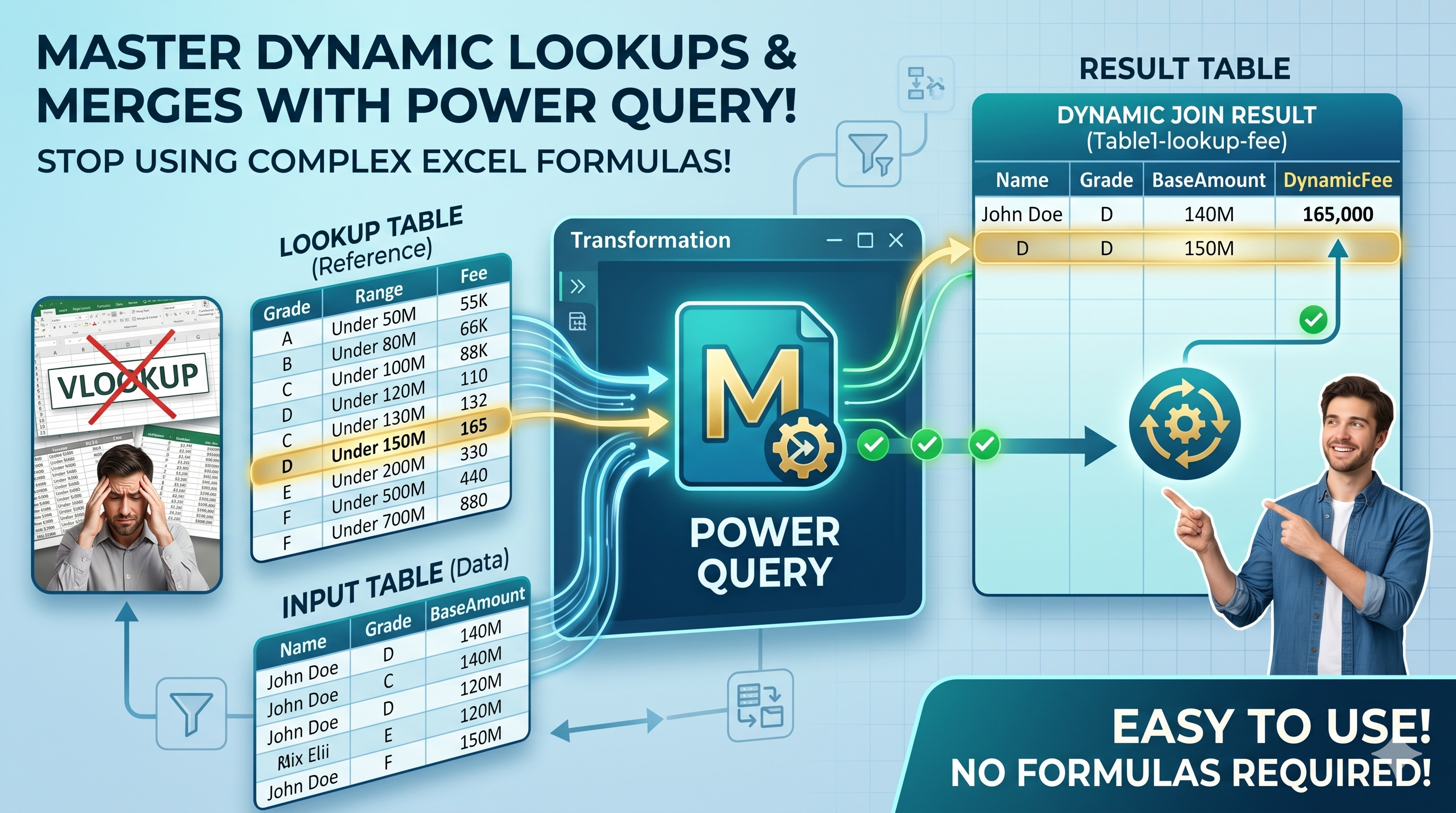
How to Calculate Fees Automatically by Grade and Amount Range with Power Query

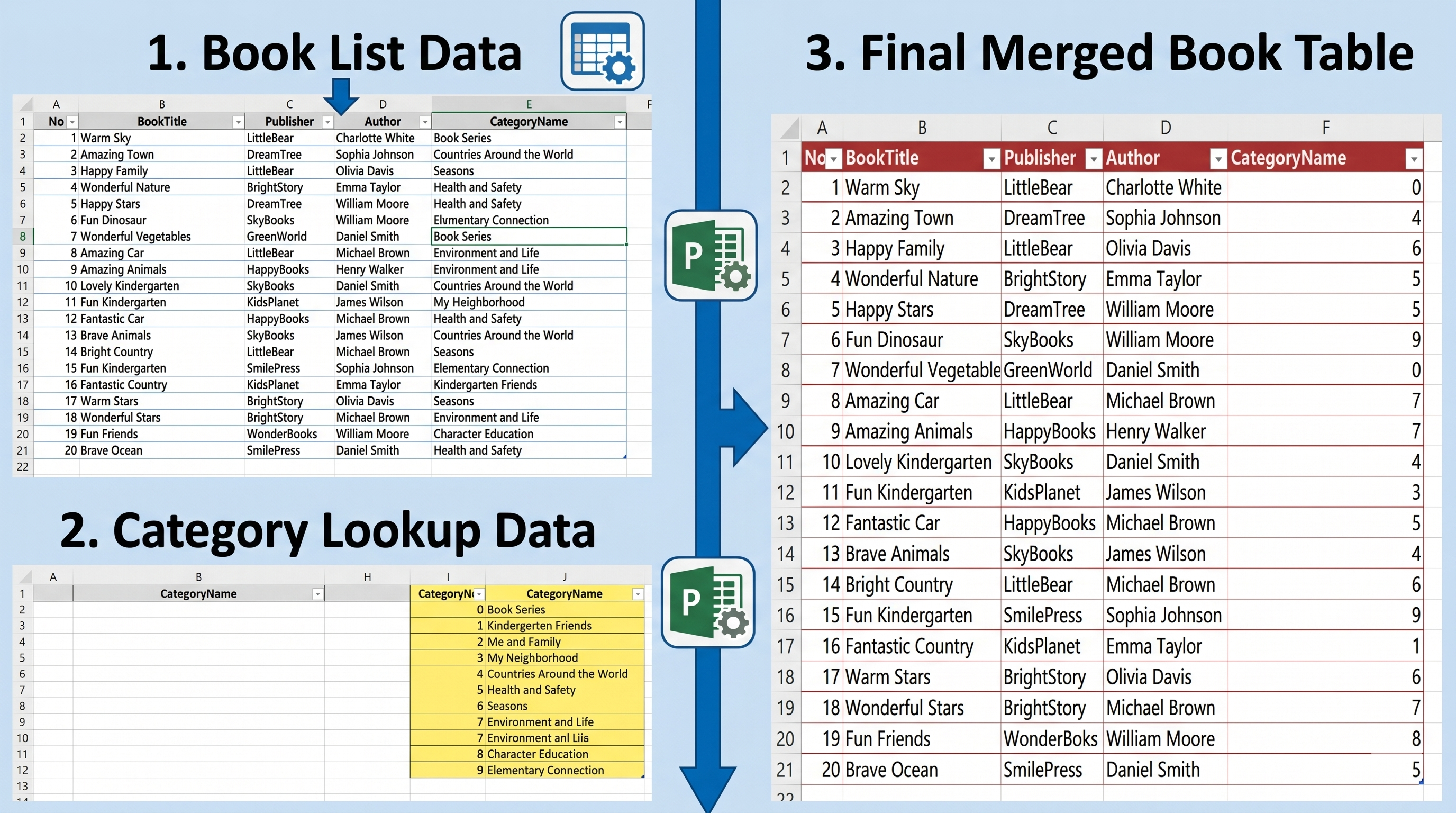
Many pricing tables use both grade levels and amount ranges to determine fees. For example, the fee may vary depending on: - Customer Grade - Contract Amount - Loan Amount - Sales Amount - Property Value In this example, Power Query automatically finds the correct fee by comparing the selected Grade and Base Amount against a predefined fee table. The result updates automatically whenever the inp..
How to Consolidate Multiple Product Tables and Create Buyer Rankings with Power Query

Many Excel reports store product sales data in separate sections across a worksheet. For example, each product may have its own Buyer, Quantity, and Amount columns. While this layout is easy to read, it is difficult to analyze and summarize. In this example, Power Query automatically: - Extracts multiple product sections - Standardizes column names - Combines all product tables - Removes blank r..

How to Transform Monthly Excel Reports into a Dynamic Pivot Table with Power Query

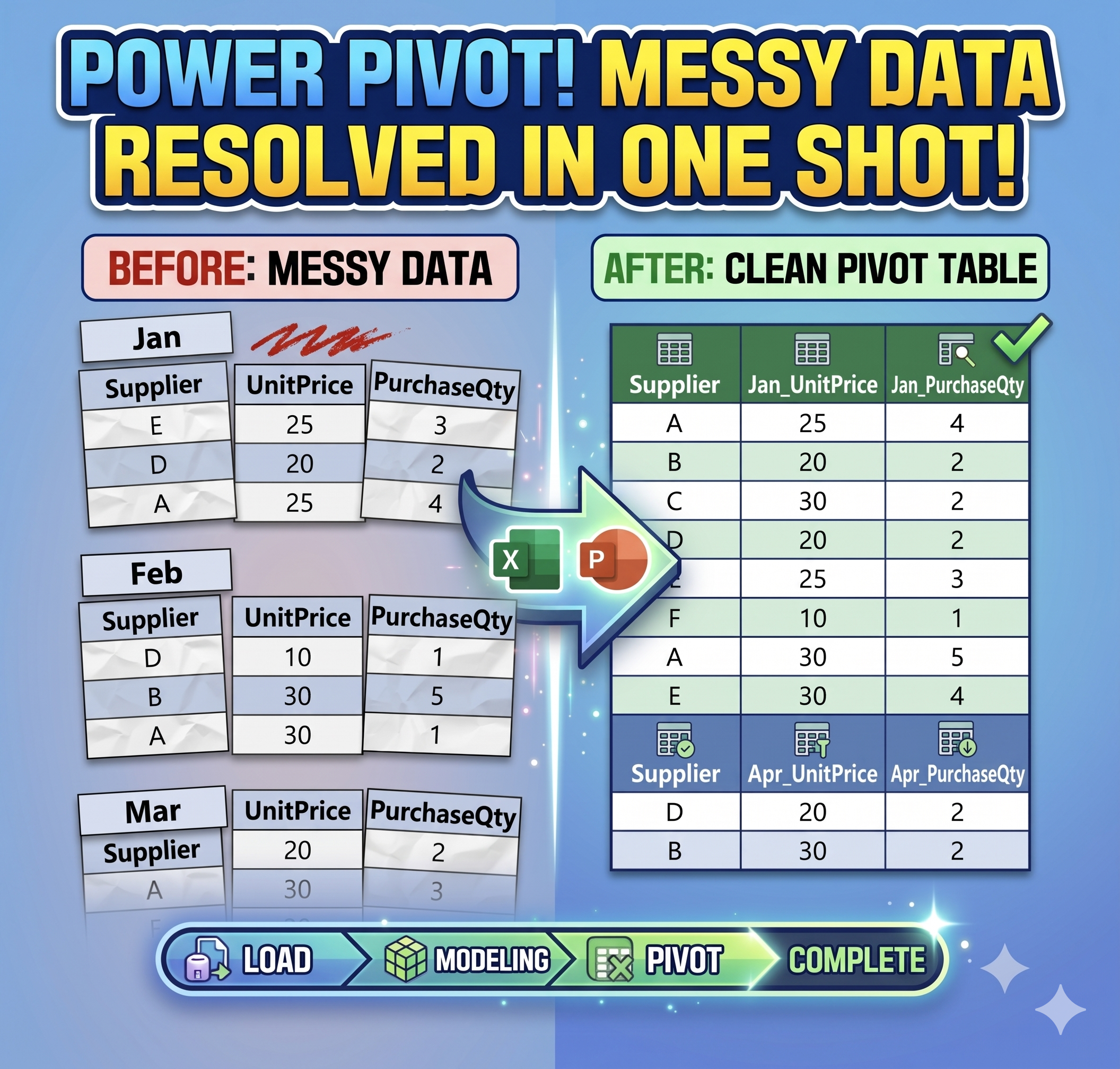
Many Excel reports contain monthly sections such as Jan, Feb, and Mar mixed together in a single worksheet. This type of structure is difficult to analyze because the data is not arranged in a proper table format. In this example, Power Query automatically: - Detects month header rows - Fills month values downward - Cleans supplier data - Unpivots the report structure - Combines month and attrib..

How to Clean Multi-Month Excel Data with Power Query and Create a Pivot Table

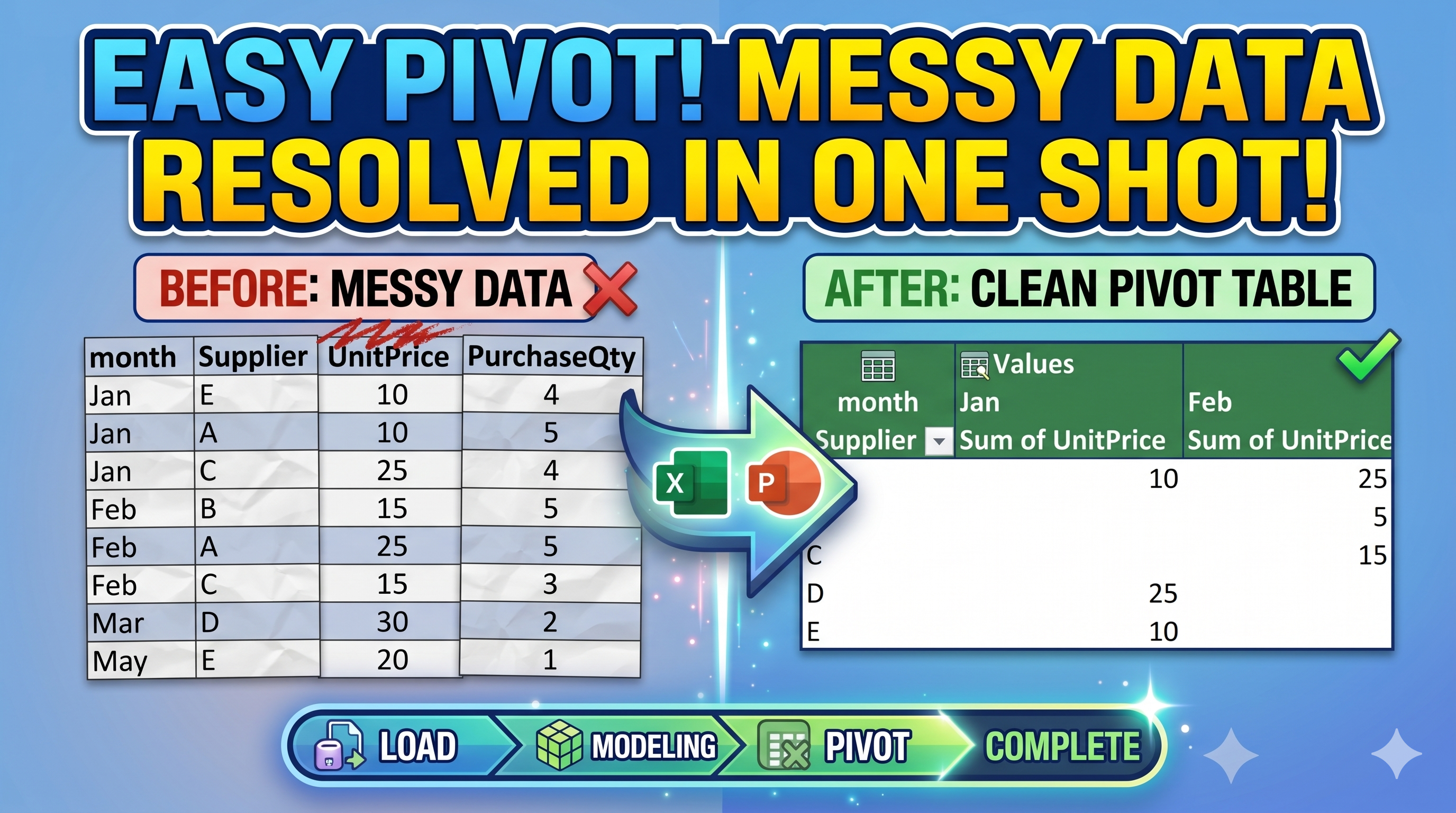
In Excel, monthly purchase data is often stored in a messy report format. For example, month names such as Jan, Feb, and Mar may appear as section headers, while supplier and purchase information are listed underneath. This structure is difficult to analyze directly with Pivot Tables. In this example, Power Query automatically cleans the report by: - Detecting month header rows - Filling month v..