전체 글 45

Power Query Combine Files with Source Filename | Track Original File and Merge Duplicate Max Values

When combining multiple Excel files using Power Query, it is often difficult to identify which file each row originally came from. This becomes more complex when identical values exist across multiple files. In such cases, simply keeping the maximum value is not enough to track the data source. This tutorial explains how to retain source filenames and combine them when duplicate maximum values e..

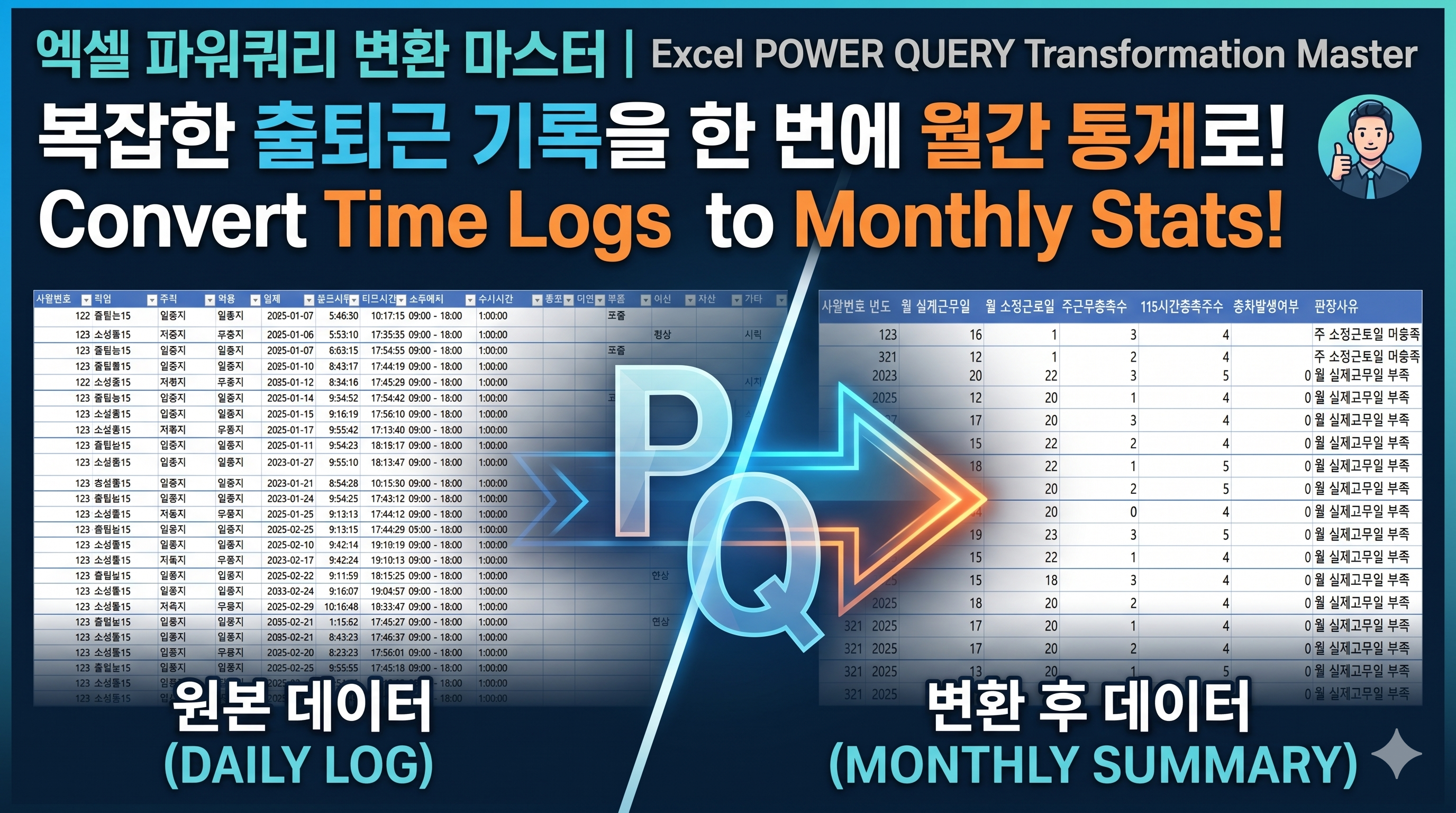
Power Query HR Automation | Monthly Leave Eligibility Calculation Based on Attendance, Working Days, and Weekly Hours

Managing employee attendance and calculating leave eligibility can become complex when multiple conditions are involved. This includes checking actual working days, required working days, and weekly working hour thresholds. In this tutorial, you will learn how to automate this entire process using Power Query. Weekly and monthly conditions are combined to determine leave eligibility automaticall..

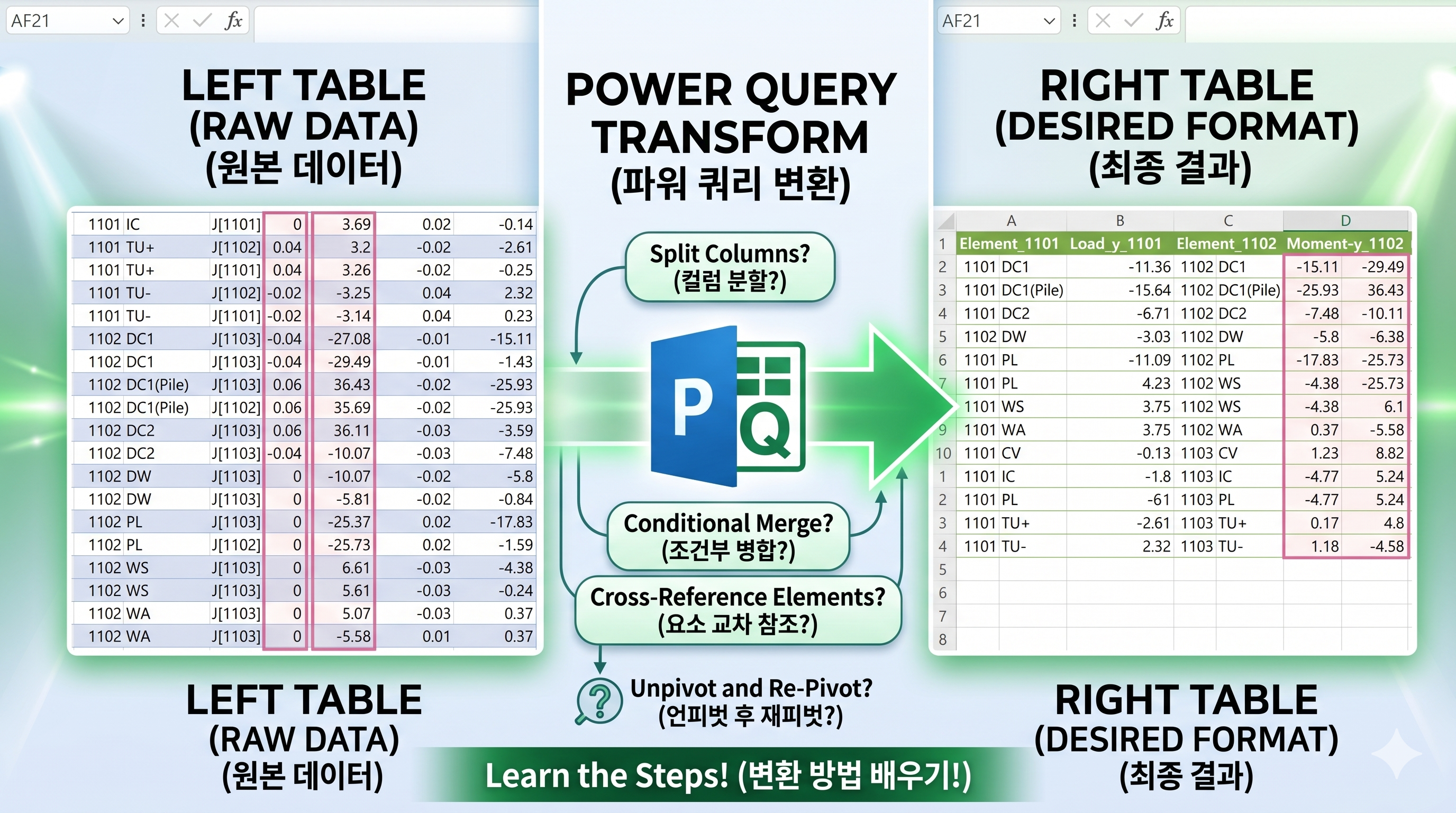
Power Query Structural Analysis Data Transformation | Expand Loads by Element Automatically

Structural analysis data is often arranged vertically, with loads listed repeatedly for each element. This structure makes it difficult to organize the data into a clean report format. Manually rearranging values like Moment-y and Shear-z into a horizontal layout can be time-consuming and error-prone. In this tutorial, you will learn how to use Power Query to automatically restructure this..

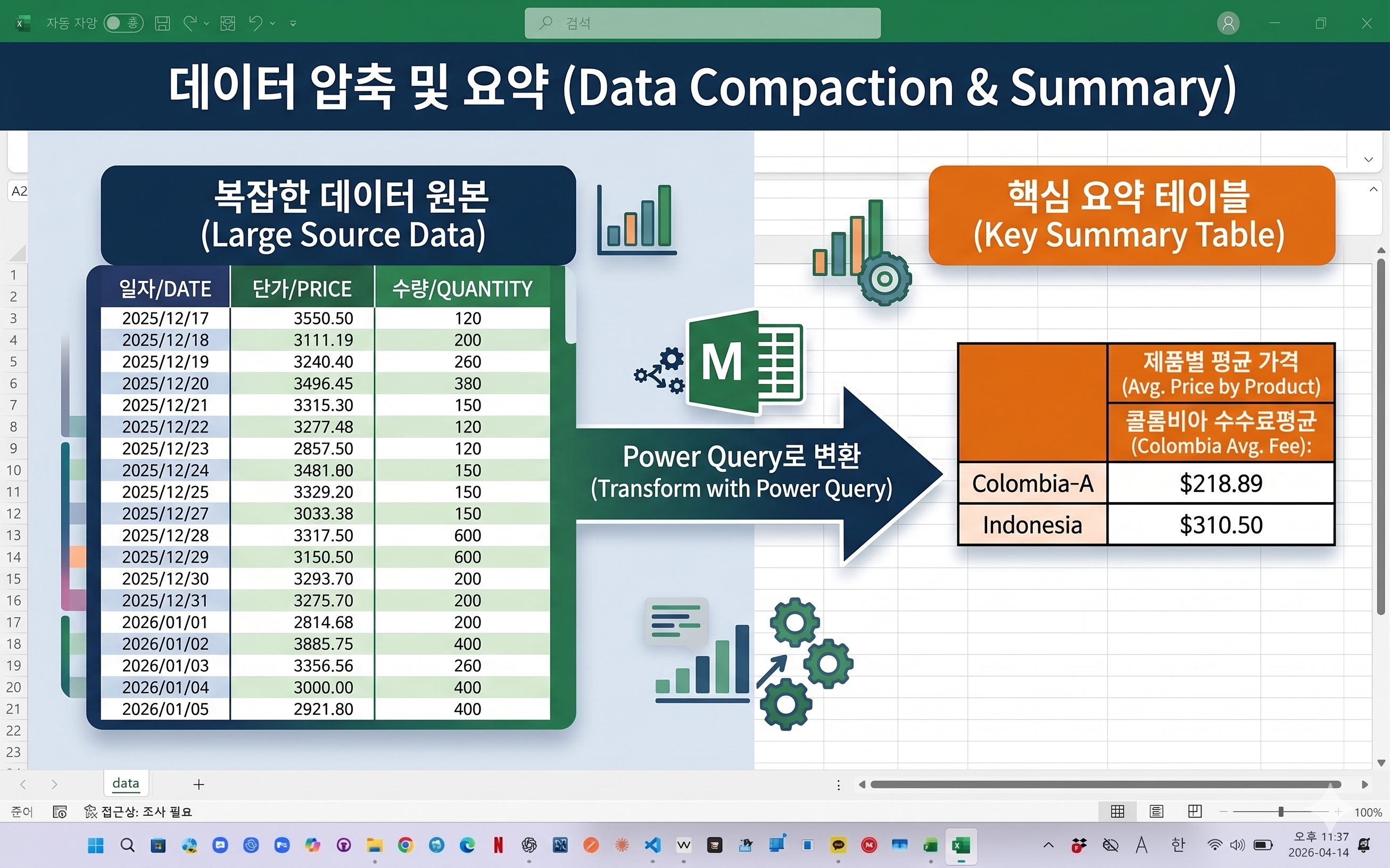
Power Query: Conditional Average Calculation by Category (Excel Automation)

In Excel, calculating averages based on specific conditions is a common task. This example shows how to filter data by category and value, then automatically calculate the average using Power Query. 엑셀 데이터를 처리하다 보면 특정 조건을 만족하는 데이터만 골라 평균을 계산해야 하는 경우가 많습니다. 이번 예제에서는 산지와 특정 값 조건을 기준으로 데이터를 필터링한 뒤 평균값을 자동으로 계산하는 방법을 소개합니다. (이미지 삽입) Power Query를 활용하면 복잡한 함수 없이도 클릭 몇 번으로 조건 필터와 평균 계산을 동시에 처리할 수 있으며 데..

Power Query Compare Two Excel Tables (Detect Added, Deleted, and Changed Rows)

When working with Excel planning files, it is common to compare yesterday’s data with today’s updated data. This example shows how to use Power Query to automatically detect added rows, deleted rows, and changed rows. The result can be refreshed anytime without manual comparison. 엑셀 작업을 하다 보면 전일에 받은 자료와 금일에 받은 자료를 비교해야 하는 경우가 자주 있습니다. 특히 출하 계획표나 생산 계획표처럼 항목은 비슷하지만 일부 행이 추가되거나 삭제되고, 같은 항목이라도 수량만 ..

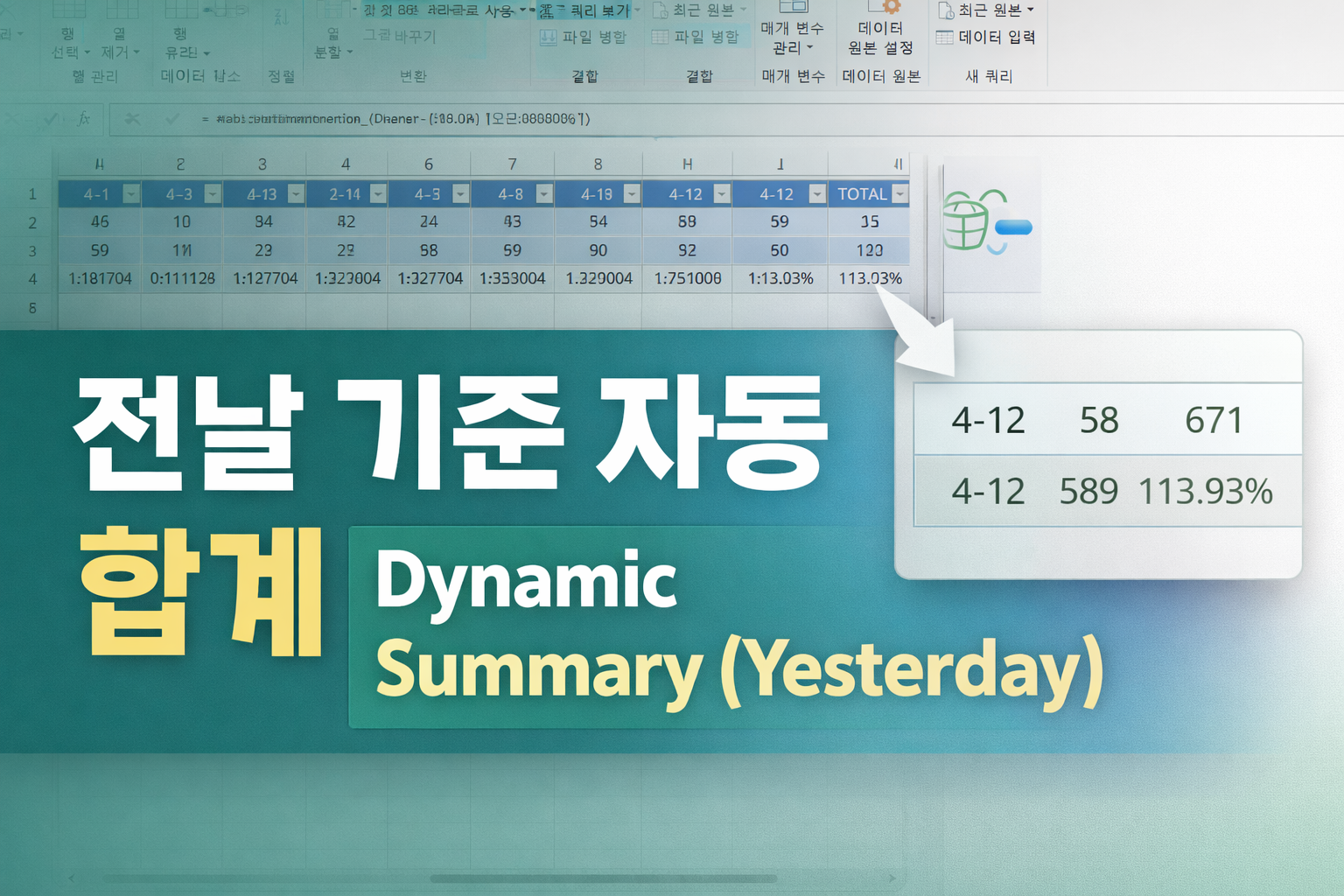
Power Query: Dynamic Daily Summary Based on Yesterday (Using TODAY) 전날 기준 자동 합계 구하는 방법

When working with Excel data, it is often necessary to calculate results based on yesterday’s date rather than today. This example shows how to create a dynamic summary that automatically updates using Power Query and a reference date. 엑셀 작업을 하다 보면 오늘이 아닌 전날 기준으로 데이터를 집계해야 하는 경우가 많습니다. 이번 예제에서는 TODAY 함수를 활용하여 전날 기준 날짜를 만들고 해당 날짜까지 자동으로 합계를 계산하는 방법을 소개합니다. (이미지 삽입) Power Query를 사용하면 날짜가 변경되더라도 새로..

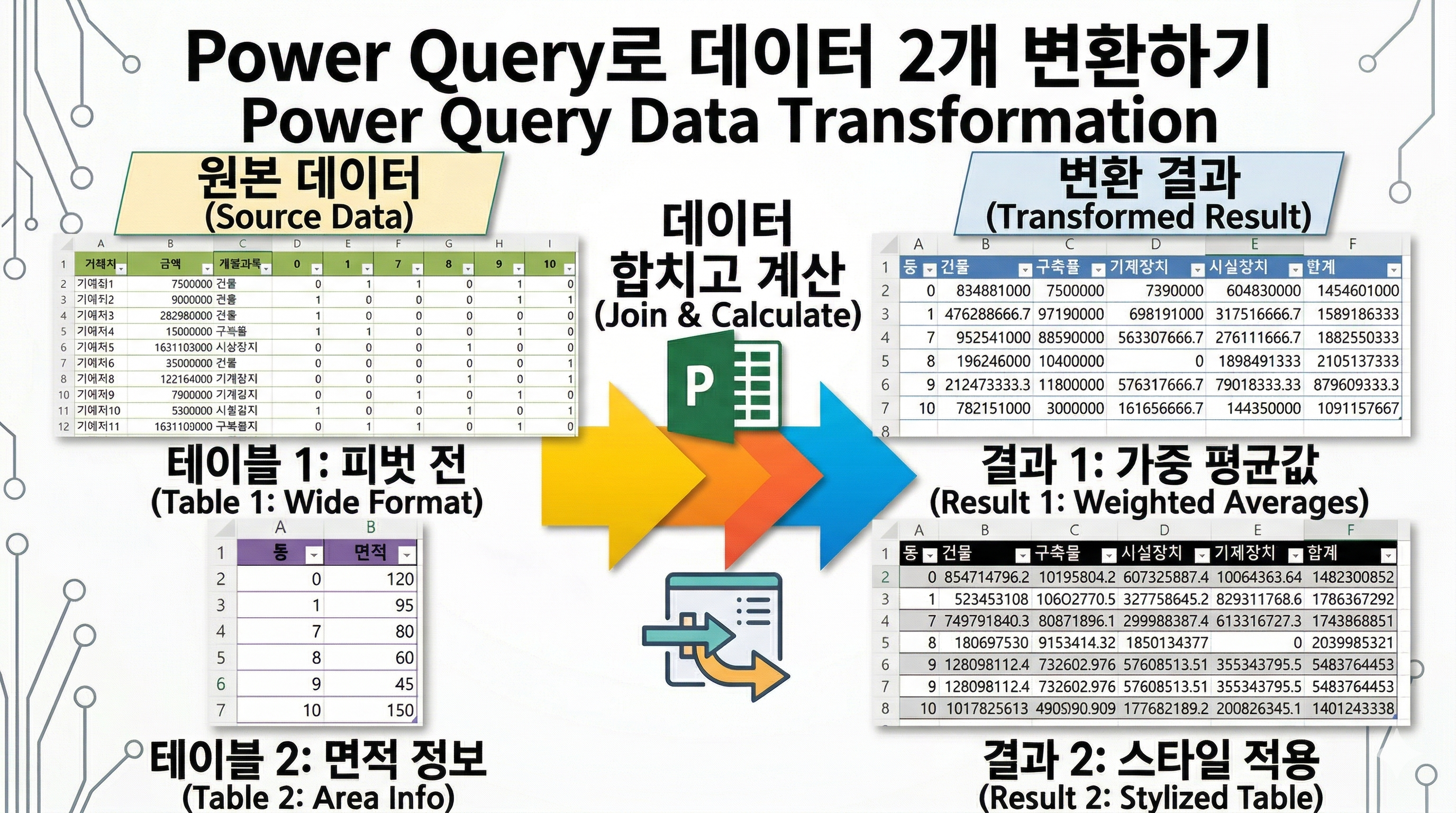
Power Query Allocate Amount by Area (면적 기준 금액 자동 분배 방법)

This tutorial shows how to allocate amounts across multiple units using Power Query. You can distribute values evenly or proportionally based on area. This method automatically updates when new data is added. 엑셀에서 거래처별 금액을 동별, 계정과목별로 나누어야 하는 경우가 있습니다. 단순히 나누는 것이 아니라 특정 동에만 해당 금액이 분배되고, 여러 동에 걸쳐 있을 경우에는 면적 기준으로 안분까지 해야 하는 상황도 자주 발생합니다. 이 작업을 수식으로 처리하려고 하면 SUMIFS, VLOOKUP 등을 조합해야 해서 구조..

Power Query Categorize Values by Range (값 범위에 따라 자동 문자 분류하는 방법)

This tutorial shows how to categorize values based on a range using Power Query. You can automatically assign labels depending on where the value falls. The M code below can be directly applied to your dataset. 엑셀 작업을 하다 보면 값의 범위에 따라 데이터를 분류해야 하는 경우가 자주 발생합니다. 이번 예제에서는 특정 값이 어느 구간에 속하는지 자동으로 판단하여 문자를 붙이는 방법을 소개합니다. (이미지 삽입) Power Query를 사용하면 이 작업을 클릭 한 번으로 자동화할 수 있습니다. 아래 M code를 그대로 적용하..

Power Query로 조건부 누적 최대값·두번째최대값 자동 추출하는 방법 (List.FirstN + List.Max 활용)

엑셀 데이터를 분석하다 보면 특정 조건을 만족하는 값만 골라서 누적으로 추적하고, 그 중 최대값과 두번째최대값을 자동으로 뽑아야 하는 상황이 생깁니다. 이번 글에서는 Power Query M코드를 활용해 전일 대비 하락 후 상승 전환 시점의 가격을 자동으로 감지하고, 해당 값들을 누적 리스트로 쌓아가면서 최대값과 두번째최대값, 그리고 두 값의 비율까지 자동 계산하는 방법을 소개합니다. 핵심 함수는 List.FirstN, List.RemoveNulls, List.Max, List.Sort, List.Distinct이며, 인덱스를 기준으로 해당 행까지의 누적 데이터만 참조하기 때문에 행이 추가되어도 자동으로 반영됩니다. 데이터만 업데이트하고 새로고침 버튼만 누르면 결과가 자동으로 갱신되므로, 매일 반복되는 ..

엑셀 Power Query로 가로 월별 데이터 세로 변환 자동화하는 방법 (월 자동 확장 + 총금액 계산)

엑셀에서 월별 데이터를 관리할 때 가로 방향으로 열을 추가하는 구조를 많이 사용합니다. 처음에는 편리해 보이지만, 데이터가 쌓일수록 분석이 어려워지고 Power BI 연동 시에도 문제가 생기는 경우가 많습니다. 이 글에서는 Power Query를 활용해 가로 월별 데이터를 세로(Unpivot) 형태로 자동 변환하는 방법을 단계별로 설명합니다. 이 방법으로 해결되는 문제 월이 추가될 때마다 코드나 수식을 수정할 필요 없이 자동 반영 해외사업부·국내사업부 소계를 기반으로 월별 총금액 자동 계산 데이터 추가 후 새로고침 한 번으로 결과 업데이트 완료 Power BI 연동에 최적화된 세로형 데이터 구조 확보 이런 분께 추천합니다 매월 반복되는 엑셀 데이터 정리 작업을 자동화하고 싶은 분, 또는 기존 가로형 보고..